Text to 3D
Describe a character, product, prop, vehicle, building, packaging concept, or collectible and generate a 3D model from your prompt.
Create from text AIto3D.ai
Sign in or create your account to generate and manage your AI 3D models.
By continuing, you agree to our Terms and Privacy Policy.
Create downloadable 3D models from a text prompt, one image, or multiple reference views. With AIto3D.ai, you can generate a model online, inspect it in 3D, and export it for games, 3D printing, product design, web, or AR.
Create 3D models for
Start with text to 3D, image to 3D, or multiple images to 3D when you need stronger shape guidance. Then keep working with online 3D tools for format conversion, orientation fixes, mesh export, 3D volume calculation, and file compression, or create polished 3D render images and 360° turntable videos for e-commerce, product demos, social sharing, AR, prototyping, and 3D printing workflows.
Describe a character, product, prop, vehicle, building, packaging concept, or collectible and generate a 3D model from your prompt.
Create from textUpload a photo, AI image, product picture, concept art, or sketch and convert the visible subject into a 3D model you can preview and refine.
Create from an imageAdd consistent front, side, and back references to improve shape accuracy and capture hidden surfaces for product models and complex objects.
Create from multiple imagesConvert GLB, OBJ, FBX, STL, PLY, USDZ, 3MF, and glTF files online, fix model orientation, export workable mesh formats, calculate 3D volume and dimensions, and compress heavy files for faster sharing.
Open 3D toolsRender a generated or uploaded 3D model into a polished image. Export one clean studio render or a four-image view pack for product pages, catalogs, marketplaces, and client approvals.
Turn a 3D model into a 360° showcase video. Export square 1:1 videos for product pages and marketplaces, or vertical 9:16 videos for social sharing, Shorts, Reels, TikTok, and ads.
Rotate each model to inspect its shape, proportions, and surface details. These examples show the kinds of assets you can create from a written prompt or a reference image.
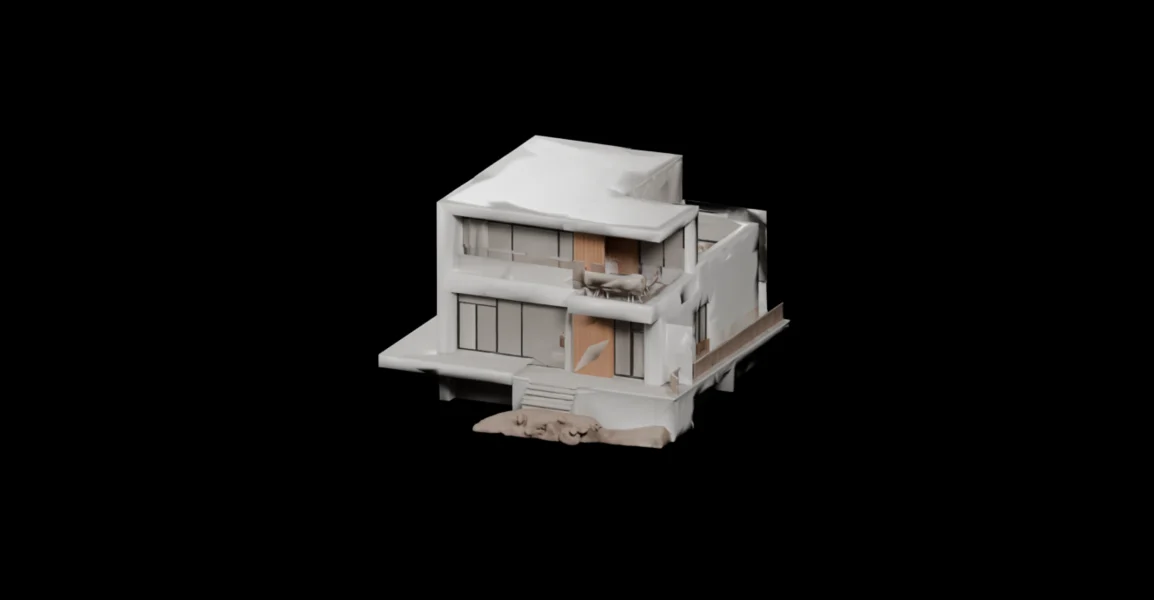
Create architectural concept models from detailed prompts that describe the building form, materials, windows, balconies, and exterior features.
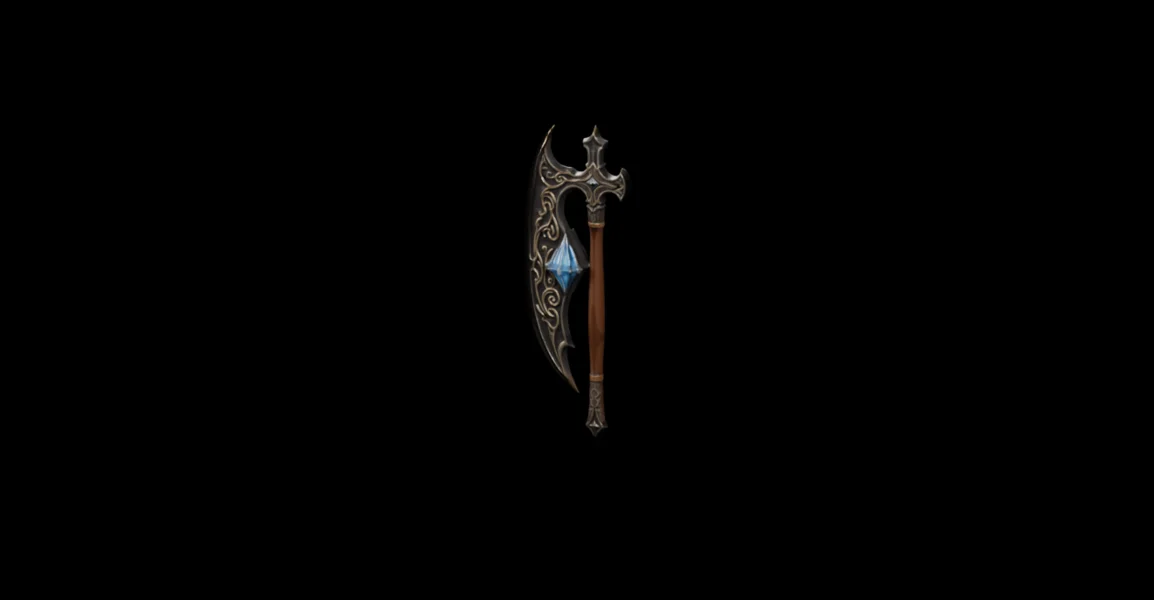
Generate weapons, props, and collectible concepts with a clear silhouette and recognizable decorative details for further editing.
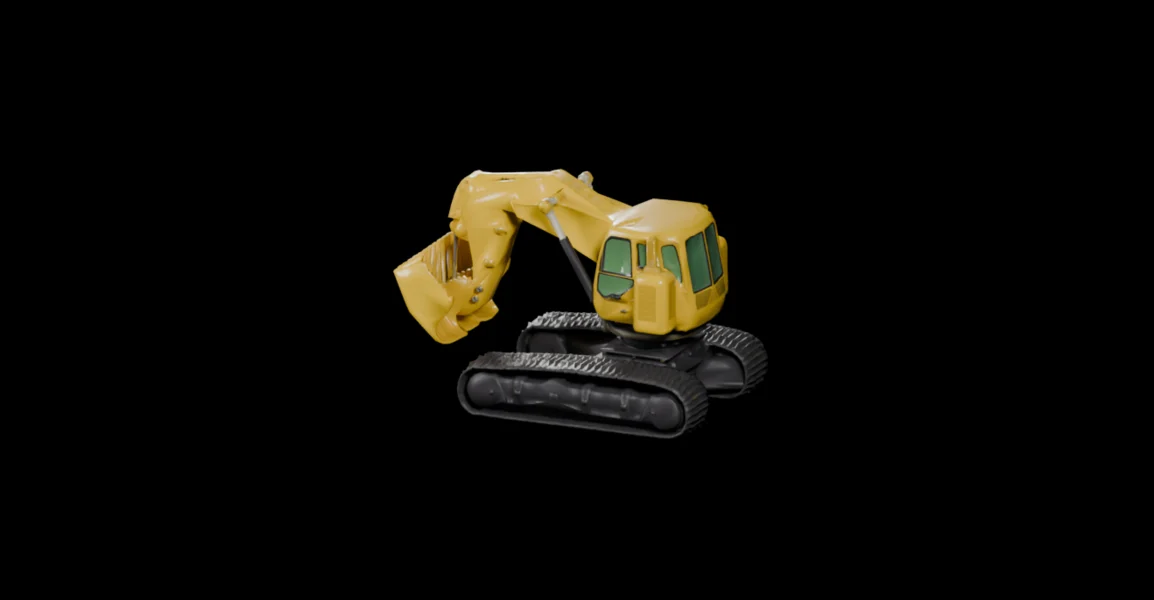
Turn a detailed vehicle description into a 3D concept with recognizable tracks, cabin shapes, mechanical parts, and overall proportions.
 IMAGE TO 3D
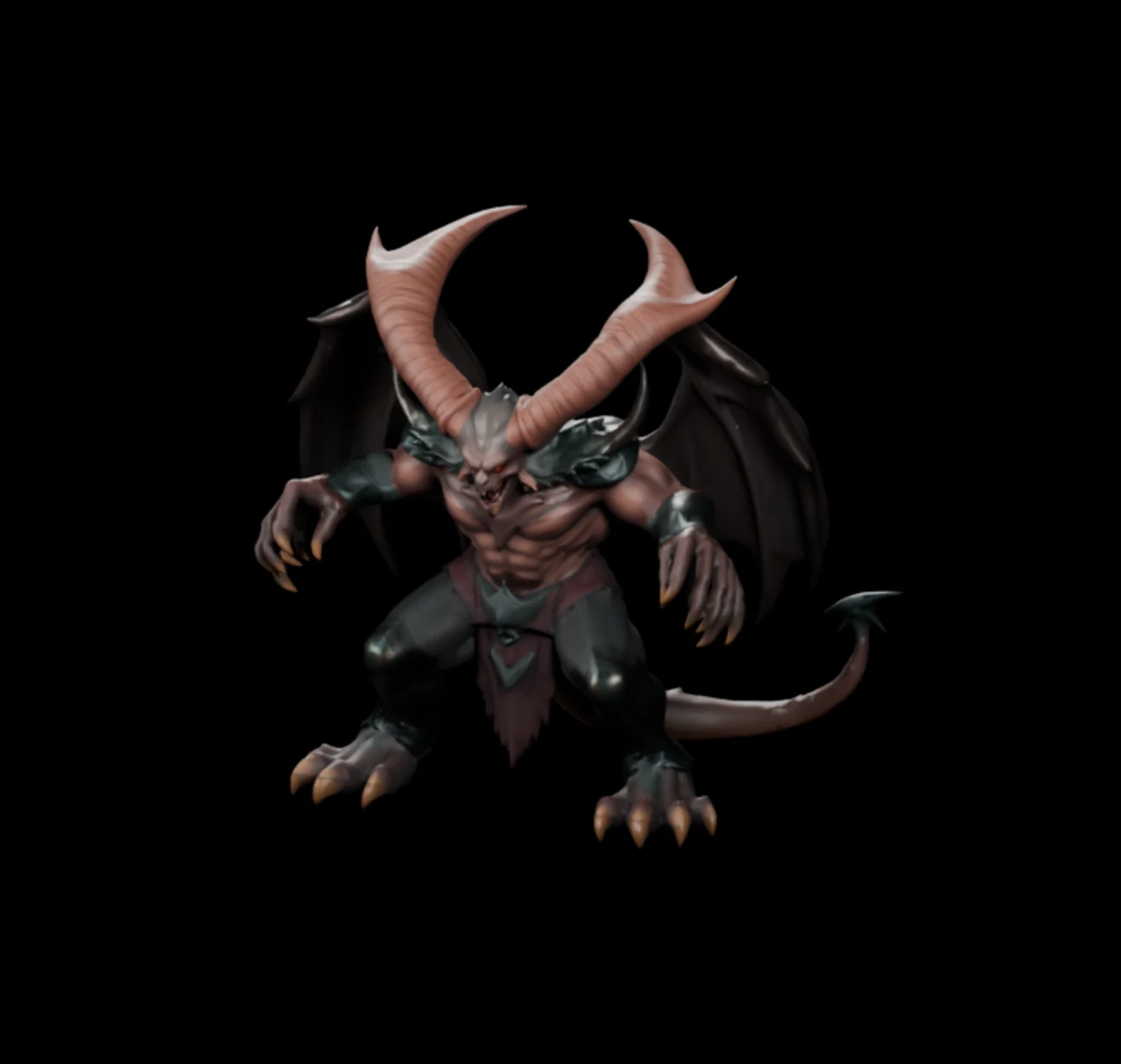
Convert a character illustration into a 3D model while keeping the main pose, silhouette, colors, and recognizable visual features.
AIto3D.ai generates real 3D mesh geometry rather than a flat image with a 3D effect. Preview the model online, convert it into the format your workflow needs, calculate measurements, compress heavy assets, render polished images, and export 360° videos for e-commerce, product design, social media, AR, prototyping, and 3D printing.
No 3D modeling setup is required to begin. Add your input, generate the model, inspect the result, and download the format that fits your next step.
Describe the model you want, upload one clear image, or add multiple consistent views of the same object.
Review the model from every angle and choose the texture quality, geometry quality, and mesh type that suit your use.
Export a compatible 3D file and continue in Blender, a game engine, a slicer, a web viewer, or another 3D tool.
Use an AI-generated model as a fast starting point for creative work, prototyping, visualization, or further production in your existing 3D workflow.
Create starting models for characters, weapons, vehicles, collectibles, pickups, and environment objects.
Visualize early shapes for devices, tools, furniture, packaging, appliances, and consumer product ideas.
Generate a starting mesh for prototypes, miniatures, collectibles, toys, decorations, and maker projects.
Turn character art into a starting model for a figure, mascot, game character, creature, or collectible.
Create 3D objects for interactive websites, educational experiences, product previews, and AR projects.
Create product models for 360-degree previews, online catalogs, configuration, and richer product pages.
Turn an illustration or sketch into a 3D concept for toys, desk pieces, ornaments, and custom gifts.
Generate concepts for chairs, lighting, storage, decor, tableware, fixtures, and other home products.
A clear reference image gives the AI more reliable information about the object’s outline, proportions, colors, and visible surfaces. Use these simple checks before you generate.
Preview your generated model online, then export a format that fits your workflow. Continue editing in Blender, import into Unity or Unreal Engine, prepare an STL or 3MF for printing, or use GLB and USDZ for web and AR.
Learn what you can generate, which inputs work best, what file formats are available, and when a model may need additional editing.
Contact supportAn AI 3D model generator creates three-dimensional geometry from an input such as a text prompt, a single image, or multiple reference views. AIto3D.ai lets you preview the generated model in your browser and export it as a common 3D file.
Yes. Upload a clear photo, AI-generated image, product picture, illustration, concept art, or sketch with one complete subject. The AI estimates the object’s depth and hidden surfaces, so results are usually stronger when the subject is centered, fully visible, and separated from the background.
Yes. Describe the object you want, including its shape, materials, colors, style, and important parts. Text to 3D is useful for creating new characters, props, products, vehicles, buildings, collectibles, and other concept models.
Use multiple images when one view does not show enough of the object’s back, sides, depth, or structure. Front, side, and back references work best when they show the same object with consistent proportions, colors, and design details.
AIto3D.ai provides free credits so you can try 3D generation. The credits required depend on the geometry, texture, and mesh settings you select. Additional credits and plan options are available on the pricing page.
Use one complete subject, a simple background, clear edges, even lighting, and minimal obstruction. Avoid heavily cropped objects, crowded scenes, extreme perspective, transparent surfaces, and important parts hidden outside the frame.
AIto3D.ai supports common formats including GLB, OBJ, FBX, STL, PLY, USDZ, and 3MF. Choose GLB for web 3D, FBX or OBJ for many editing workflows, STL or 3MF for 3D printing, and USDZ for Apple AR workflows.
Yes. Download the model and continue working in compatible 3D software. Depending on your goal, you may want to adjust topology, UVs, textures, scale, rigging, printability, or small geometric details.
Generated models are useful starting assets, but production requirements vary. Inspect the mesh, topology, scale, materials, thin parts, hidden surfaces, and licensing before using a model in a game, product, print, web, or commercial project.
If an AIto3D.ai generation fails and no usable 3D model is created, the credits used for that failed generation are automatically returned to your account.
Commercial use depends on your account plan, the applicable license terms, your source material, and any third-party rights. Review the AIto3D Commercial License before using generated assets commercially.
Enter a text prompt or upload a reference image to generate a downloadable 3D model with AIto3D.ai. Preview the result, choose your settings, and export it for your next project.